

GitHub Pages can publish a static site at the default github.io address or at
a domain you own. A custom domain has two parts that must agree: GitHub must
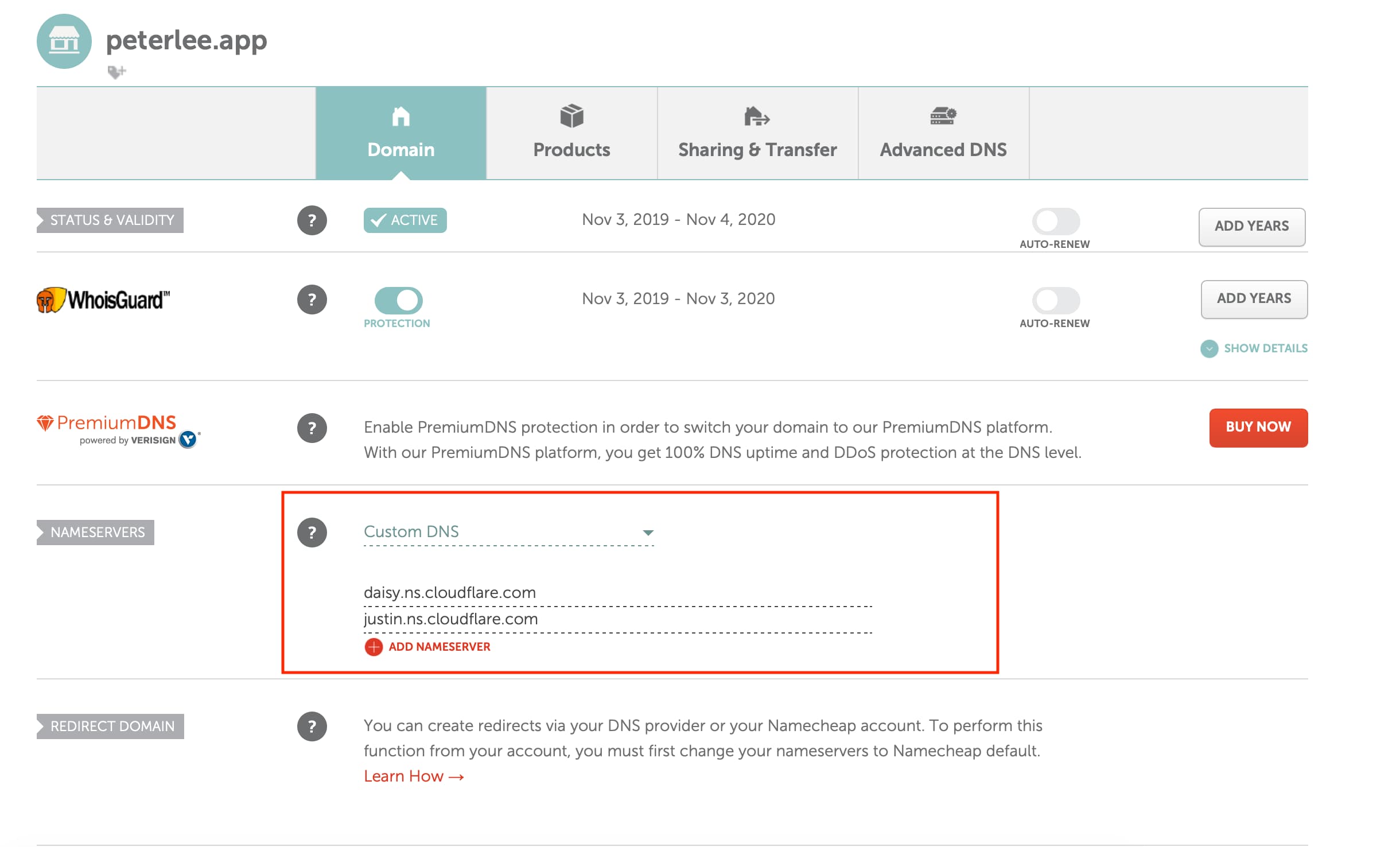
know which Pages site owns the name, and DNS must point that name to GitHub.
The examples use www.example.com; replace it with a domain you control.
Start with a working Pages site
Before adding DNS, configure the repository’s publishing source under Settings → Pages and confirm that the default Pages URL works. GitHub Pages can publish from a branch or from a GitHub Actions workflow; choose the source that matches how the site is built.
You need a GitHub repository and a domain registered with a DNS provider. Cloudflare is one option for managing that DNS, but the record types below are not Cloudflare-specific.
Register the custom domain in GitHub first
In Settings → Pages, enter www.example.com under Custom domain and
save it before changing DNS. GitHub recommends this order so the domain is
associated with your Pages site before it resolves there. Verify the domain in
your GitHub account as well, which helps prevent it being claimed by another
Pages site.
For a branch-based publishing source, GitHub creates a CNAME file in the
source branch when you save the setting. A site deployed only by a custom GitHub
Actions workflow does not rely on that file, so the repository setting is the
source of truth in either case.
Add the matching DNS record
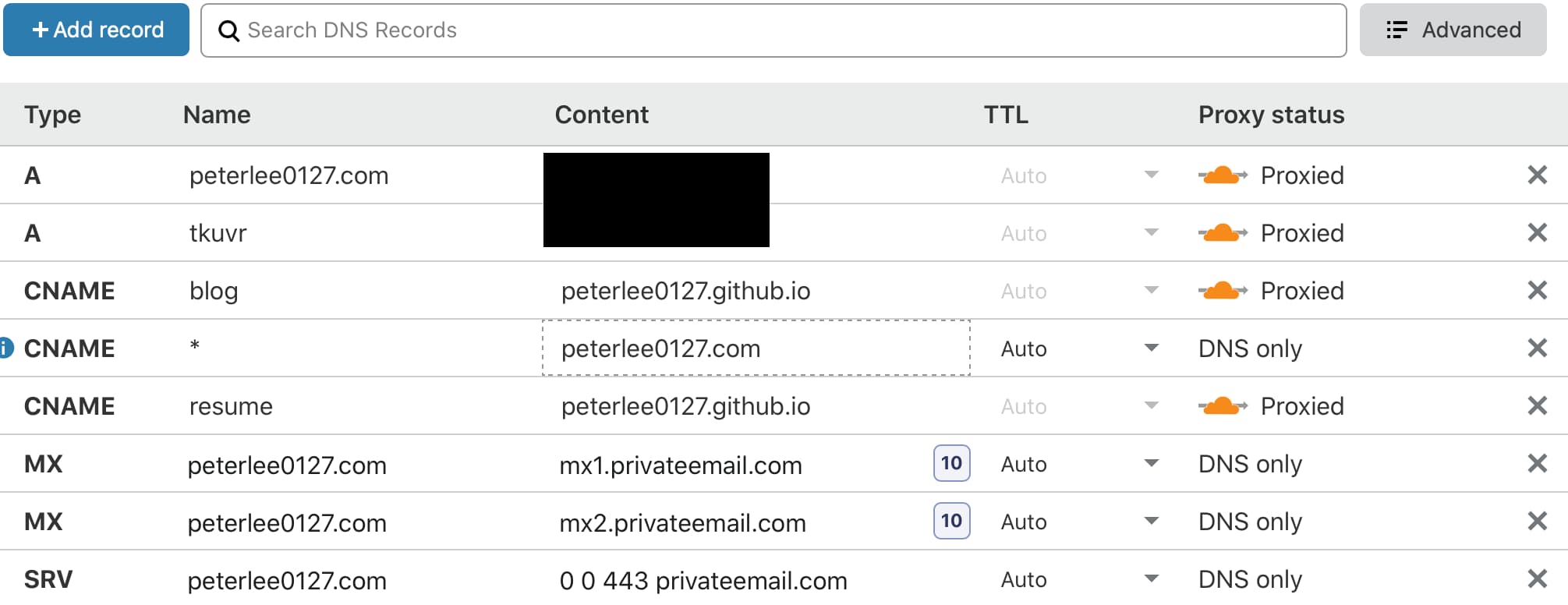
For a subdomain such as www.example.com or blog.example.com, create a
CNAME record pointing to USERNAME.github.io or ORGANIZATION.github.io.
For an apex domain such as example.com, use the ALIAS, ANAME, or complete
set of A/AAAA records documented by GitHub; an apex domain cannot use the
same ordinary CNAME arrangement at every DNS provider.
Use GitHub’s current custom-domain record table instead of copying addresses from an old post. Avoid wildcard DNS records for Pages: they can expose unclaimed subdomains to takeover.
Verify the published site
DNS changes can take time to propagate. Once the custom domain resolves to GitHub Pages, return to Settings → Pages, complete any pending verification, and enable HTTPS when GitHub makes it available. Check both the custom URL and the default Pages URL after a deployment, then test a second page so a broken base URL or link path is not mistaken for a DNS problem.