
Installing a local large language model on an M5 Pro is straightforward. Choosing the right model format and leaving enough unified memory are the parts that need more attention. I use two 4-bit MLX models in LM Studio: Qwen3.6 35B A3B and Qwen3.8 27B. Their model files are about 20.43 GB and 16.08 GB respectively. Both support text, images, and reasoning, but their architectures and best uses differ.
Prepare LM Studio and the MLX runtime
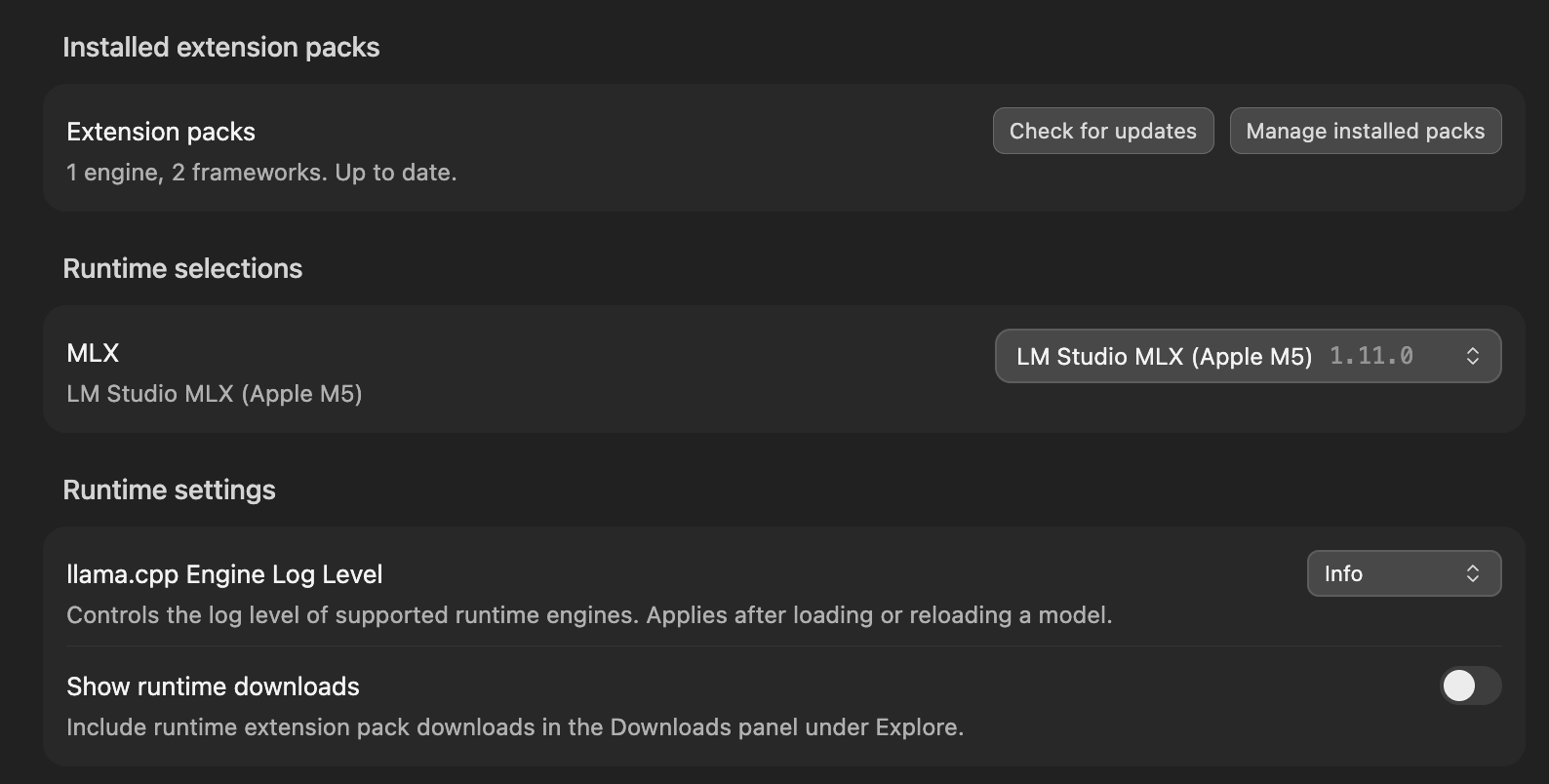
Install the latest LM Studio, then open Runtime management from Settings in the lower-left corner. Apple Silicon can run models through llama.cpp or Apple’s MLX. Because I downloaded MLX models for this setup, the Runtime selection must also use LM Studio MLX.
In Runtime management, click Check for updates and confirm that the MLX extension pack is installed and current. If a downloaded model will not load, check the runtime selection here.
Download Qwen3.6 and Qwen3.8
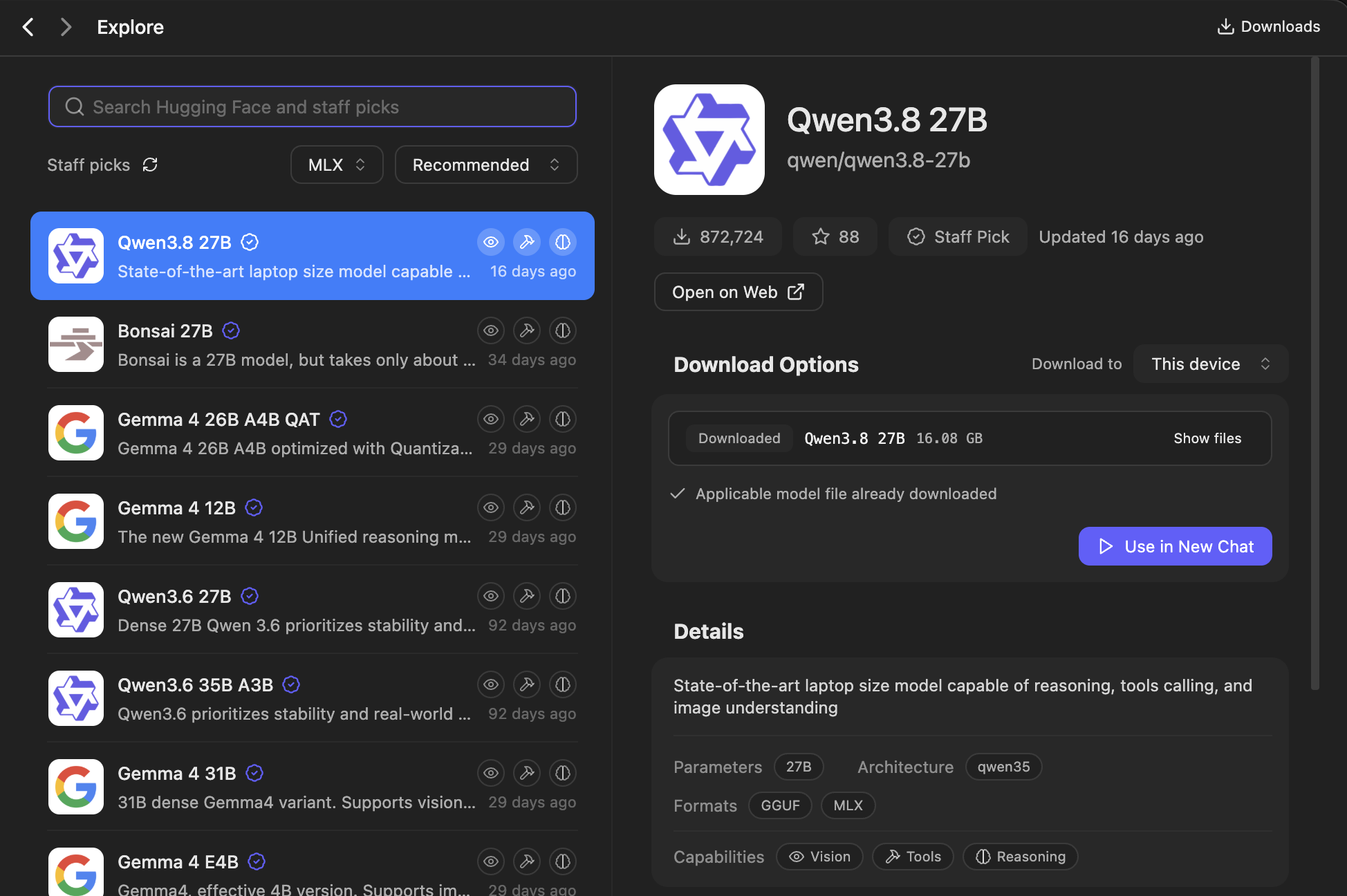
Open Settings → Explore, where models can be searched, downloaded, and installed directly. Filter the format to MLX, then search for these models:
qwen/qwen3.6-35b-a3bqwen/qwen3.8-27b
I chose the 4-bit quantization for both. Quantization reduces the file size and memory requirement at the cost of some quality compared with higher-precision weights. LM Studio’s download guide recommends starting with a 4-bit option or higher when the machine can handle it.
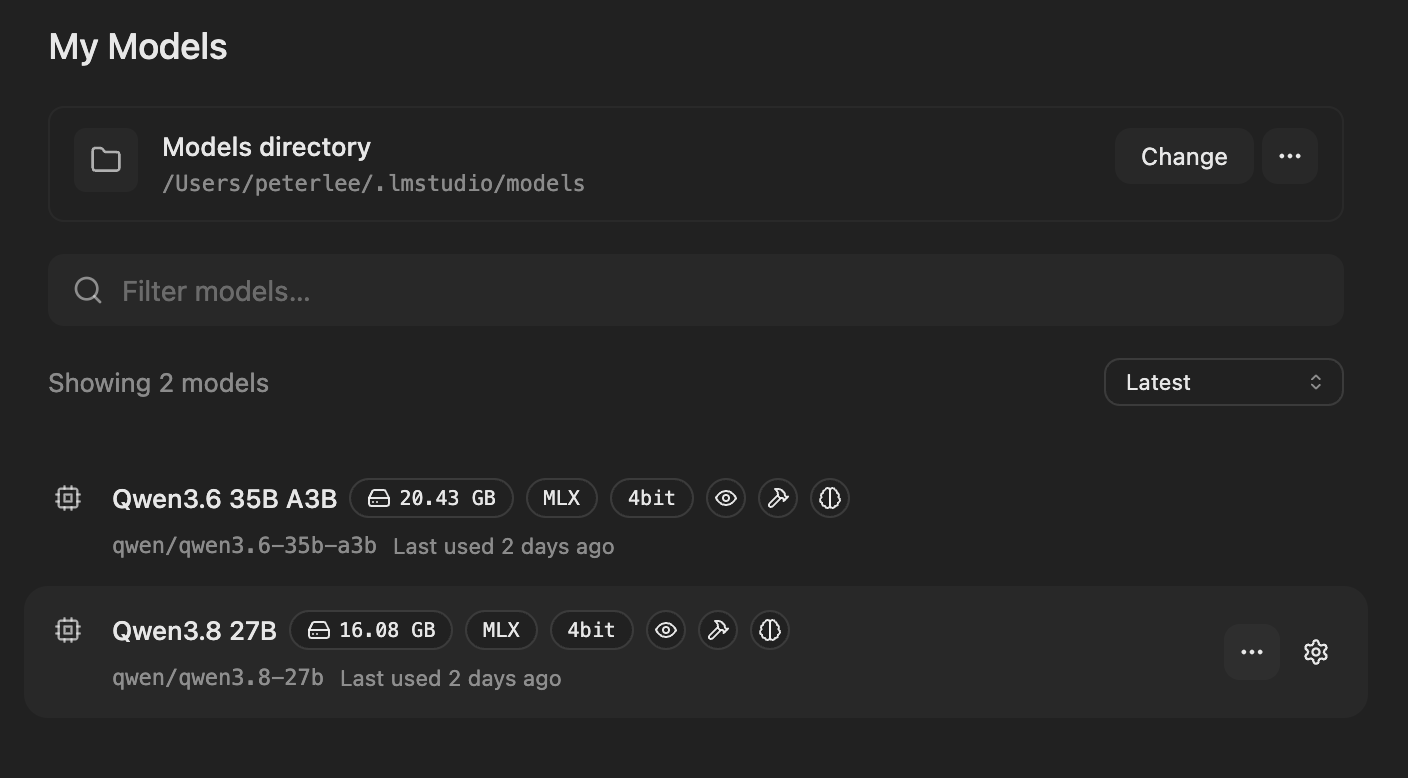
After downloading, open My Models to verify the format, quantization, and file size. In this setup, Qwen3.6 35B A3B MLX 4-bit is 20.43 GB and Qwen3.8 27B MLX 4-bit is 16.08 GB.
The model file size is not the complete runtime requirement. Loading also needs room for context, the KV cache, image processing, LM Studio, and macOS. LM Studio labels 20 GB and 16 GB as the minimum system memory for Qwen3.6 35B A3B and Qwen3.8 27B respectively. These are minimum figures, not recommended configurations or performance guarantees. If unified memory is only slightly larger than the model file, start with a shorter context, load one model at a time, and close memory-heavy apps.
Choosing between the two models
Qwen3.6 35B A3B is a Mixture of Experts (MoE) model with 35B total parameters and about 3B activated during inference. A3B does not mean that only 3B of weights need to be loaded; the 20.43 GB model file still occupies unified memory. Qwen’s model card highlights agentic coding and the ability to preserve historical thinking traces, while LM Studio exposes Enable Thinking and Preserve Thinking controls.
Qwen3.8 27B is a 27B dense model, yet its 4-bit file in this setup is smaller. It is the newer release, with improvements to coding, research, agent tasks, and image understanding. It also offers low, medium, and xhigh reasoning effort. For screenshots, documents, or more involved execution, Qwen3.8 is a reasonable model to try first. If an existing workflow is already reliable on Qwen3.6, a higher version number alone is not a reason to switch.
Both models have a native context length of 262,144 tokens, but a laptop does not need to allocate that much for every session. LM Studio’s resource estimator accounts for the chosen context length and whether a model supports vision. For a first load with limited memory, 16K or 32K is a practical starting point. This is a memory trade-off: Qwen3.6’s model card recommends at least 128K to preserve its thinking capabilities.
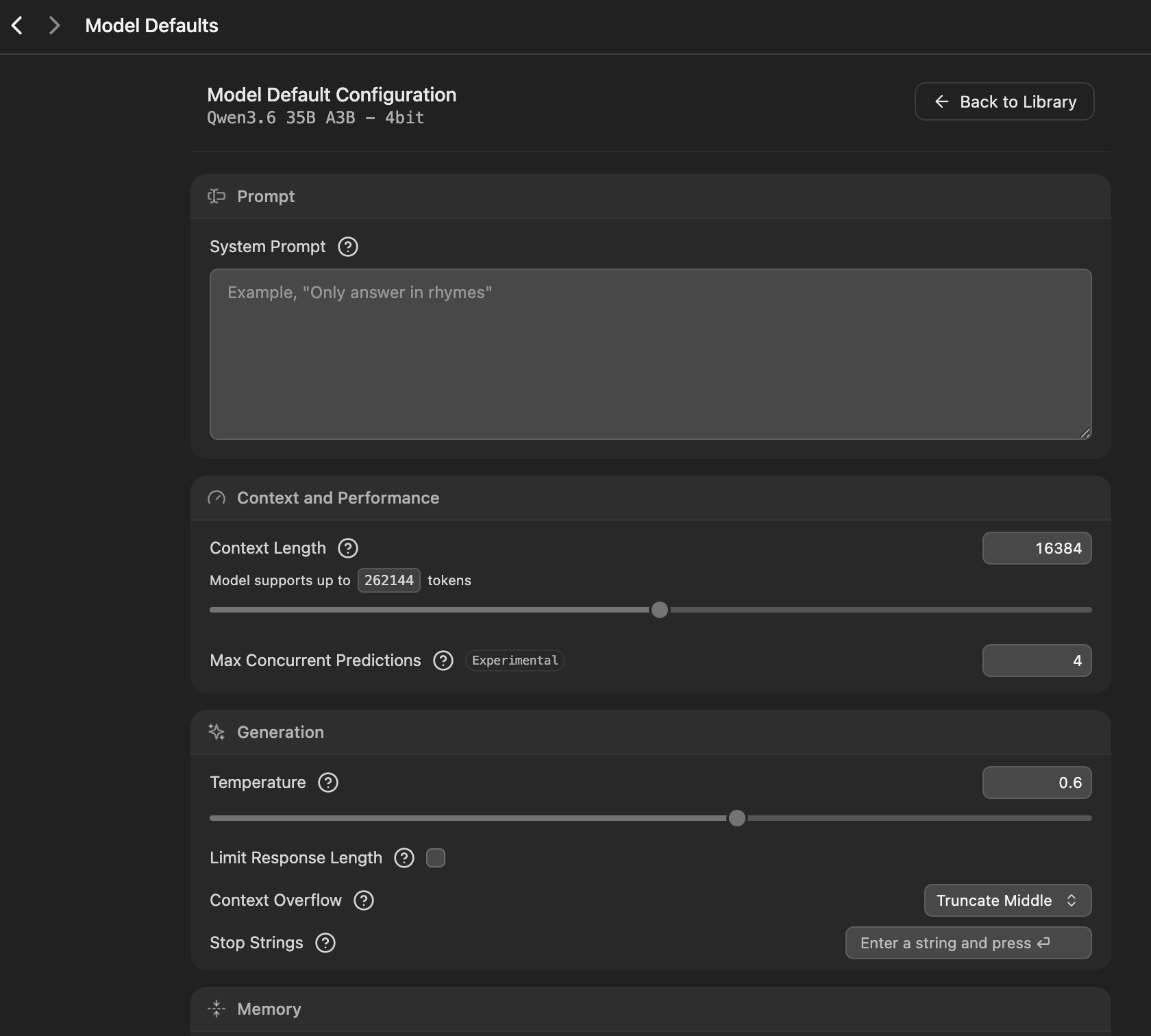
In My Models, click the gear beside a model to open its Model Defaults. This is where you can adjust the System Prompt, Context Length, and generation settings; saved values take effect the next time the model is loaded. The Qwen3.6 setup below uses 16,384 tokens and a Temperature of 0.6. These are the values used for this session, not requirements for every Mac. Other options can stay at their defaults unless the task calls for a specific change.
Load a model and start chatting
Open Chat, select the model loader, and choose one of the downloaded models. A practical first test looks like this:
- Set Context Length to 16K or 32K.
- Load only one model and check that macOS Memory Pressure remains healthy.
- Send the same Chinese prompt to both models, then compare answer quality and waiting time.
- Attach a screenshot to confirm that vision and image understanding work.
- Disable thinking for simple questions. Enable it for coding, planning, or multi-step analysis. For Qwen3.8, start with
mediumand move toxhighonly when deeper reasoning is useful.
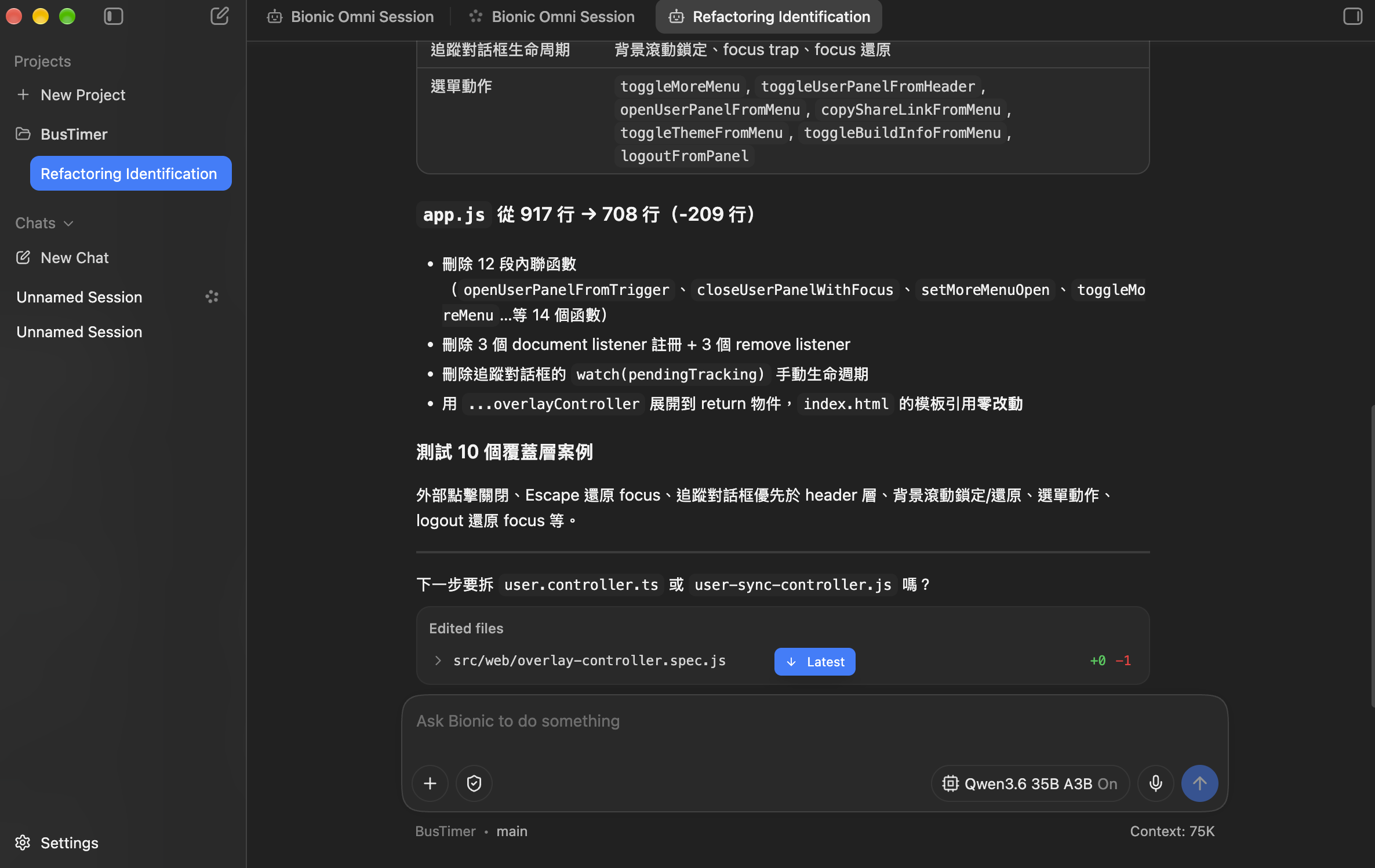
Beyond chat and image understanding, LM Studio can use the model for coding work in a project context. The Qwen3.6 35B A3B session below summarizes JavaScript refactoring changes and covered test cases. The lower-right corner also shows the model name and Context: 75K.
If loading fails or macOS starts using substantial swap, unload the other model and reduce the context length. If that is still not enough, choose a smaller model or a lower-bit quantization instead of repeatedly forcing the same load. Qwen3.8 has a smaller model file here, but dense and MoE architectures do different amounts of work during inference. File size alone cannot tell you which one will generate faster; test them with your own prompts, context, and hardware.
Once the model files are downloaded, LM Studio can chat offline. Its offline-operation documentation states that chat input stays on the device. Searching for and downloading models, downloading runtimes, and checking for updates still require a network connection.
References
- LM Studio: Use MLX on Apple Silicon
- LM Studio: Download models and choose a quantization
- LM Studio: Set per-model defaults
- LM Studio: Load models and estimate resource use
- LM Studio: Qwen3.6 35B A3B
- LM Studio: Qwen3.8 27B
- Qwen: Qwen3.6 35B A3B model card
- Qwen: Qwen3.8 27B model card
- LM Studio: Offline operation